Blog

  • Upgrading my rsync script

    Upgrading my rsync script

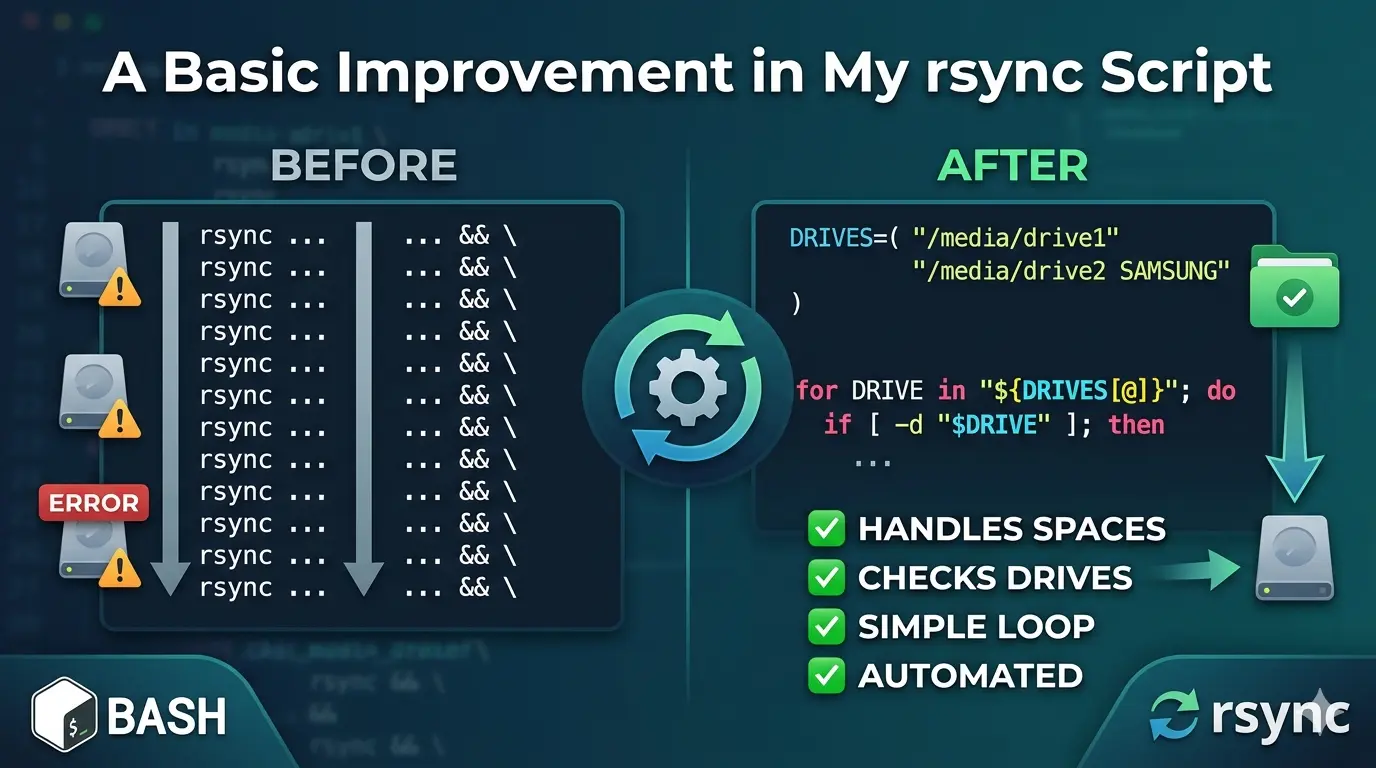
    A Basic Improvement in My rsync Script

    rsync is used for efficient file synchronization and backup. It copies only the differences between source and destination, saving time and bandwidth.

    And it is preinstalled on Ubuntu.

    I use rsync to back up some of my folders to external storage like this:

    #!/bin/bash
    
    rsync -avh --delete --progress /home/fakhri/Documents/LinguistWork/ /media/fakhri/32Gobkup/LinguistWork_backup/ && \
    rsync -avh --delete --progress /home/fakhri/Documents/LinguistWork/ /media/fakhri/8GO/LinguistWork_backup/ && \
    rsync -avh --delete --progress /home/fakhri/Documents/LinguistWork/ /media/fakhri/"SAMSUNG SSD"/LinguistWork_backup/ && \
    rsync -avh --delete --progress /home/fakhri/Documents/LibreWriter/ /media/fakhri/"SAMSUNG SSD"/LibreWriter_backup/ && \
    rsync -avh --delete --progress /home/fakhri/Documents/LibreWriter/ /media/fakhri/8GO/LibreWriter_backup/ && \
    rsync -avh --delete --progress /home/fakhri/Documents/LibreWriter/ /media/fakhri/32Gobkup/LibreWriter_backup/ && \
    rsync -avh --delete --progress /home/fakhri/Documents/LinguistWork/l10n  /media/fakhri/8GO/LinguistWork_backup/l10n 


    As you can see, I use && and \.

    • && is used to combine two bash commands and run the second command only if the first command succeeds (exits with status 0).
    • \ is used for line continuation – it tells the shell that the command continues on the next line, making long commands more readable.

    We could use ; instead of &&, but ; would run the second command regardless of whether the first command succeeded or failed. && is safer for backup operations because if the first backup fails, the second won’t run, preventing incomplete or corrupted backups.


    The Improved Script with a Loop

    The problem with my original approach is that I had to manually write a line for each external drive. If I added a new drive, I had to update the script. Also, if a drive wasn’t connected, rsync would still try to run and throw an error.

    Here’s my improved script that automatically handles multiple drives and checks if they’re connected:

    #!/bin/bash
    
    # Define all four backup locations
    DRIVES=("/media/fakhri/32Go" "/media/fakhri/8GO" "/media/fakhri/SAMSUNG SSD" "/media/fakhri/500Go")
    
    for DRIVE in "${DRIVES[@]}"; do
        # Check if the drive is actually plugged in before starting
        if [ -d "$DRIVE" ]; then
            echo "-----------------------------------------------"
            echo "Backing up to: $DRIVE"
            echo "-----------------------------------------------"
    
            # Syncs the entire folder and all its subfolders
            rsync -avh --delete --progress "/home/fakhri/Documents/LinguistWork/" "$DRIVE/LinguistWork_backup/"
            rsync -avh --delete --progress "/home/fakhri/Documents/LibreWriter/" "$DRIVE/LibreWriter_backup/"
        else
            echo "Skipping $DRIVE (Drive not connected)"
        fi
    done
    
    echo "Backup process finished!"


    DRIVES=("/media/fakhri/32Go" "/media/fakhri/8GO" "/media/fakhri/SAMSUNG SSD" "/media/fakhri/500Go")

    Array definition. Creates an array variable named DRIVES containing four paths (one per drive). The parentheses () define an array, and each quoted string is an element. Using an array allows us to loop through all drives without repeating code.

    for DRIVE in "${DRIVES[@]}"; do

    The Very Important Symbol: [@]

    The critically important symbol is [@] (at-sign with brackets).


    Why [@] is So Important

    What it does:

    ${DRIVES[@]} expands to all elements of the array DRIVES, with each element treated as a separate word.

    The Danger of NOT using [@]

    If you wrote this incorrectly as:

    for DRIVE in ${DRIVES[@]}; do   # Missing quotes - WRONG!

    Or worse:

    for DRIVE in $DRIVES; do        # Just wrong - treats array as single string

    Here’s what happens with a drive path containing spaces, like "/media/fakhri/SAMSUNG SSD":

    Correct WayIncorrect Way
    "${DRIVES[@]}"${DRIVES[@]} (no quotes)
    SAMSUNG SSD stays as ONE itemSAMSUNG and SSD become TWO separate items
    The script sees: /media/fakhri/SAMSUNG SSDThe script sees:
    1. /media/fakhri/SAMSUNG
    2. SSD (which is not a valid path)

    The Three Array Expansion Options Compared

    SymbolBehaviorWhen to Use
    $DRIVESOnly first element (treats array as scalar)Never for arrays
    ${DRIVES[*]}All elements as single stringWhen you want one combined string
    ${DRIVES[@]}All elements as separate wordsMost common – use in loops
    "${DRIVES[@]}"All elements as separate words, preserving spacesALWAYS USE THIS for paths with spaces

    The Golden Rule

    Always use "${ARRAY[@]}" with quotes when iterating over arrays containing file paths.

    The quotes + [@] combination ensures:

    1. Each array element stays intact (spaces preserved)
    2. Empty elements are preserved
    3. Special characters (like * or ?) are not expanded

    Without this, your backup script will fail silently and try to write to completely wrong locations!

    Every Important Symbol Explained

    Here’s the breakdown of every critical symbol in these lines:

    if [ -d "$DRIVE" ]; then
        # ... backup commands ...
    else
        echo "Skipping $DRIVE (Drive not connected)"
    fi
    done

    if [ -d "$DRIVE" ]; then

    SymbolNameWhat it does
    ifKeywordStarts a conditional statement. If the following command returns true (exit code 0), execute the code between then and else/fi
    [Test command (left bracket)A built-in command that evaluates conditional expressions. Must have spaces around it! [ -d "$DRIVE" ] not [-d "$DRIVE"]
    (space)Space separatorRequired between [ and -d – bash needs spaces to distinguish commands from arguments
    -dFlag (directory test)Tests if the following path exists and is a directory. Returns true (0) if yes, false (1) if not
    (space)Space separatorRequired between -d and the path
    "$DRIVE"Double-quoted variableExpands to the value of DRIVE variable while preserving spaces in the path. Without quotes, a path like /media/fakhri/SAMSUNG SSD would break into two words
    (space)Space separatorRequired between the path and the closing bracket
    ]Closing bracketEnds the test command. Must have a space before it!
    ;Command separatorAllows multiple commands on one line. Here it separates the test command from then
    thenKeywordMarks the beginning of the code block to execute if the if condition is true

    else

    SymbolNameWhat it does
    elseKeywordMarks the alternative code block. Executes if the if condition was false (the drive was NOT a directory)

    echo "Skipping $DRIVE (Drive not connected)"

    SymbolNameWhat it does
    echoCommandPrints text to the terminal
    " "Double quotesEverything inside becomes a single argument to echo, even if it contains spaces or variables. Variables inside ($DRIVE) still expand
    $DRIVEVariable expansionReplaces $DRIVE with its actual value (e.g., /media/fakhri/32Go)
    ()ParenthesesRegular text characters here – just part of the message. Not a command substitution because there’s no $ before them

    fi

    SymbolNameWhat it does
    fiKeywordCloses the if block. It’s “if” spelled backwards. Every if must have a matching fi

    done

    SymbolNameWhat it does
    doneKeywordCloses the for loop. Marks the end of the loop body. Every for must have a matching done

    The Most Critical Symbol: [ ] (Test Command)

    The brackets [ ] are NOT syntax – they are a command!

    Mental model:

    if [ -d "$DRIVE" ]; then

    Is equivalent to:

    if test -d "$DRIVE"; then

    The [ command is just an alias for test that requires a closing ].

    Common Mistakes with [ ]:

    ❌ Wrong✅ CorrectWhy
    [-d "$DRIVE"][ -d "$DRIVE" ]Missing spaces – bash can’t find the [ command
    [$DRIVE][ -n "$DRIVE" ]No flag – what are you testing?
    [ -d $DRIVE ][ -d "$DRIVE" ]No quotes – path with spaces breaks

    Symbol Hierarchy in Context

    if [ -d "$DRIVE" ]; then
    │  │ │ │        │  │
    │  │ │ │        │  └── ends the "then" block start
    │  │ │ │        └── separates test from "then"
    │  │ │ └── variable expands to actual path
    │  │ └── tests if path is a directory
    │  └── starts test command
    └── begins conditional
    
    then
    │
    └── marks true block
    
    else
    │
    └── marks false block
    
    echo "Skipping $DRIVE (Drive not connected)"
    │    │                    │
    │    │                    └── variable inside quotes expands
    │    └── quotes keep everything as one argument
    └── prints to terminal
    
    fi
    │
    └── closes if
    
    done
    │
    └── closes for loop

    Quick Reference Card

    SymbolMeaningRemember by
    ifBegin conditional“if this is true…”
    [Start testLeft bracket opens the test
    -dDirectory check“-d” for “directory”
    $Variable valueDollar = value
    " "Preserve spacesQuotes = togetherness
    ]End testRight bracket closes the test
    ;Command separatorSemicolon = stop then go
    thenTrue branch“then do this…”
    elseFalse branch“otherwise do this…”
    fiEnd if“if” backwards
    doneEnd loop“for…done”

    The most important takeaway: [ ] needs spaces inside and outside, and always quote your variables inside tests!

    Final Note: Use [[ ]] Instead of [ ]

    For Bash scripts, the double-bracket [[ ]] is superior to the single-bracket [ ] used in this article. Unlike [ ] (a command that requires spaces and quoted variables), [[ ]] is a Bash keyword that prevents word splitting and pathname expansion. This means you can write [[ -d $DRIVE ]] without quotes, even if the path contains spaces. [[ ]] also supports pattern matching (== *.txt), regex matching (=~), and natural logical operators (&&, ||). Stick with [ ] only if you need portability to other shells like sh; otherwise, always prefer [[ ]] for cleaner, safer, and more readable conditional tests.

  • Don’t Let Your Script Lie to You: A Guide to Exit Status

    Don’t Let Your Script Lie to You: A Guide to Exit Status

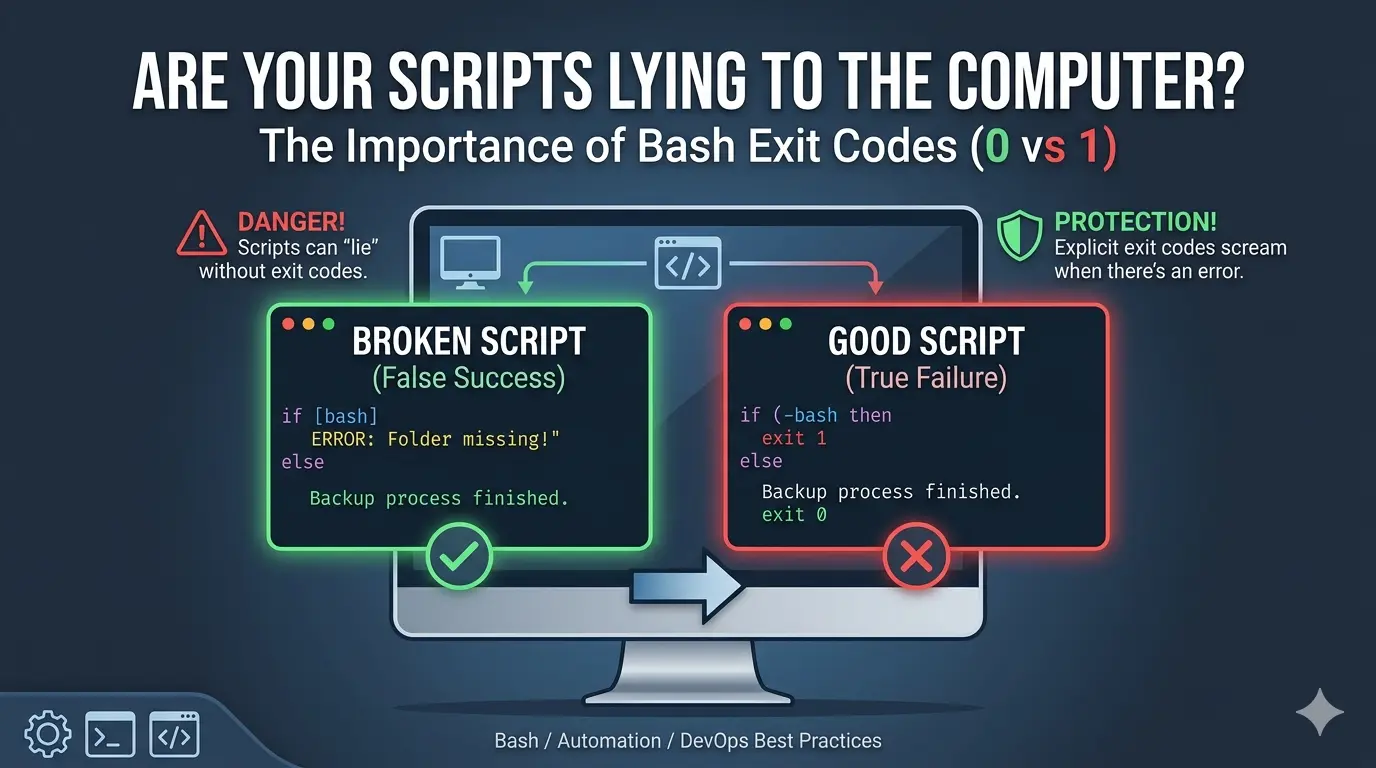
    To see why exit 1 and exit 0 are so important, we have to look at what happens when a script lies to the computer.

    If you omit them, Bash simply reports the exit status of the very last command that ran. This can lead to a “False Success.”

    1. The “Broken” Script (No Exit Codes)

    Save this as broken_backup.sh. Notice there is no exit 1.

    Bash

    #!/bin/bash
    
    # We pretend to check for a folder that DOES NOT exist
    if [ ! -d "/folder/does/not/exist" ]; then
        echo "ERROR: Folder missing!"
        # We forgot to write 'exit 1' here!
    fi
    
    # This is the last command. It will always succeed.
    echo "Backup process finished."


    2. The “Good” Script (With Exit Codes)

    Save this as good_backup.sh.

    Bash

    #!/bin/bash
    
    if [ ! -d "/folder/does/not/exist" ]; then
        echo "ERROR: Folder missing!"
        exit 1  # Stop and report failure
    fi
    
    echo "Backup process finished."
    exit 0

    3. How to Test Them (The “Truth” Test)

    Run these commands in your terminal one after the other. We will use the && operator, which only runs the second command if the first one reports Success (0).

    Testing the Broken Script:

    Bash

    bash broken_backup.sh && echo "THE COMPUTER THINKS WE SUCCEEDED! ✅"

    Result: Even though the script printed “ERROR,” the computer saw the final echo succeeded, so it ran the “SUCCEEDED” message. This is dangerous because a backup could fail and you wouldn’t know!

    Testing the Good Script:

    Bash

    bash good_backup.sh && echo "THE COMPUTER THINKS WE SUCCEEDED! ✅" || echo "THE COMPUTER DETECTED THE FAILURE! ❌"

    Result: The script stops at exit 1. The computer sees the 1, skips the && part, and triggers the || (failure) part.

    Here are the results as copied from my terminal:

    fakhri@ThinkAct:~/Documents/LibreWriter/scripts$ ./badtestexit.sh 
    ERROR: Folder missing!
    Backup process finished.
    fakhri@ThinkAct:~/Documents/LibreWriter/scripts$ ./goodtestexit.sh 
    ERROR: Folder missing!

    Why this matters in the real world

    Imagine you have a script that:

    1. Deletes your old files.
    2. Copies your new files (The Backup).
    3. Cleans up the temporary folder.

    If Step 2 (The Backup) fails because the disk is full, but you didn’t write exit 1, the script will continue to Step 3 and delete your only remaining copies, thinking everything is fine!

    Summary: * With exit 1: The script “screams” when there is a problem.

    • Without it: The script “whispers” an error but smiles at the computer, pretending everything is perfect.

    Note: about the use of “bash” at the start of the command below:

    bash good_backup.sh && echo "THE COMPUTER THINKS WE SUCCEEDED! ✅" || echo "THE COMPUTER DETECTED THE FAILURE! ❌"


    1. Manual Interpreter: Typing bash before your filename manually tells the system to use the Bash program to translate and run your script’s code.

    2. Bypasses Permissions: It allows you to execute a script immediately without needing to set “executable” permissions via chmod +x.

    3. Ensures Compatibility: It guarantees the script runs in the full Bash environment rather than a limited shell (like sh) that might misunderstand your syntax.

    4. Testing Logic: It is the most reliable way to test if your exit 0 and exit 1 codes are working correctly before finalizing the script for automation.

  • Adaptive planning

    Adaptive planning

    For a healthy work-life balance as a freelancer, I’ve adopted a more flexible work schedule over the past six to seven months.


    Instead of working a strict 9-to-5—which limited my freedom to engage in other essential activities—I’ve gradually implemented a much more supple schedule. This doesn’t mean I work less; I put in the same number of hours, but with better quality in both my work and my life.


    I made the decision to become more flexible with my working hours because there are other activities—socializing, cooking, fishing, praying at the mosque, reading ebooks—that are essential to my growth on both a personal and professional level.


    In truth, a rigid plan led to more stress, a lower quality of life, and limited social connections. In other words, my quality of life suffered.


    After six months of adapting this more flexible schedule, I can clearly see the difference: I’m more relaxed, and I enjoy both my life and my work much more. I engage in a wider variety of activities and avoid the tunnel vision that comes with hyperfocusing on work productivity and sports.


    Unfortunately, that hyperfocus proved counterproductive—it left me stressed at work and dealing with overuse injuries.
    Looking at the long term, adopting a “consistency over intensity” approach is much wiser.

    Even though I’m capable of maintaining intensity for years, doing so means ignoring other important aspects of life.

    This concept is captured beautifully in Japanese culture by the term Shokunin—a deep commitment to one’s craft, but also to community and self. Shokunin embodies a philosophy of lifelong learning and humility.

    Adaptive Planning in Practice


    I use the Planify app to organize my work and create a funnel for both my personal and professional projects. I also silence all notifications on my smartphone and avoid answering emails during deep work sessions.


    I limit myself to reading only two ebooks at a time: one for focused work-related training, and one for general culture.


    Instead of time blocking, I use theme days. Rather than scheduling every hour of my day, I dedicate entire days to specific types of work—like client projects, admin tasks, or deep learning.

    This gives me the flexibility to work when I’m most productive while ensuring important categories don’t get neglected. Theme days reduce the mental friction of constantly switching between completely different types of tasks throughout a single day.


    I maintain a backlog for my pending projects. My backlog serves as a holding pen for every idea, task, and project that crosses my mind, keeping them organized and visible without cluttering my immediate focus.

    During my weekly reviews, I pull items from this backlog into active work, ensuring nothing falls through the cracks while maintaining control over my workload. This system gives me confidence that I’m not forgetting anything, even when I’m fully immersed in client work or taking time for fishing and prayer.


    Paid projects always take priority. I pause all training and open source contributions until I finish paying work. This is essential because I may receive several freelance gigs in quick succession. If I’m contributing to FOSS projects at the same time, I might either turn down paid work or risk missing deadlines. Context switching has a cost—for this reason, I also batch similar tasks together.


    Adaptive planning is also about managing energy, not just time. This approach supports sustainable, high-quality work and a better quality of life overall. For example, when I take on a large, complex project and work intensively for weeks, I give myself a few days of rest afterward. I do the same even after a small but energy draining project.


    This only works if I trust myself to complete work in the right time, rather than a prescribed time. Since shifting to this philosophy, I’ve delivered every project on time, earned promotions to senior roles, and attracted more clients.

    How I Did This?


    I studied books on Personal Knowledge Management (PKM) and implemented weekly, monthly, and yearly reviews. I’ve also been taking consistent notes. This practice supports metacognition and helps me organize both my life and my work.


    Rather than following the “10,000 hours” rule for mastery, I’ve embraced the “10,000 experiments” rule for life design. Every adjustment I make—reading only two books, pausing FOSS work during client projects, scheduling time for fishing—is an experiment. I observe the results, learn, and iterate. Adaptive planning is a mindset of continuous experimentation, not a fixed system.


    This approach will help me evolve not just as a professional, but as a person.

  • Documenting my i10n FOSS contribution and beyond

    Documenting my i10n FOSS contribution and beyond

    I quite happy that I grew from a translation editor and PTE to Arabic GTE and language manager in the WordPress ecosystem. I have been working hard as a translation contributor for the Arabic locale for around 1 year. When I applied the Arabic language team was semi-dormant, nearly all my l10n contributions were not validated, fortunately my request to be a GTE was accepted.

    I am enjoying the experience as I have in fact been happy to see that some managers whether in the polyglot team or core-test team are particularly active and helpful. They are responsive and even get in touch with me during the weekend, they rekindled my enthusiasm for FOSS and WordPress. These managers are also mentors and guiding me towards a more impactful contributions.

    How I became a GTE

    First of all I take my FOSS contribution seriously, even though it is volunteer work, I offer the best work possible and I keep fine tuning my l10n process.

    I have been building and maintaining a glossary for WordPress terminology. Moreover, improved my workflow using AI as well. This sped up my l10n work.

    You can see my GTE request in the following link here

    And my simple tip to speed up l10n task on WordPress.

    Working on automation and scripting


    I studied and working on regex and grep for this purpose.

    This basic command finds all uses of WordPress translation functions, to find any i18n issue:

    grep -r "__|_e|_x|_ex|_n|_nx" . --include=*.php --exclude-dir={vendor,node_modules,.git}

    This essential command detects hardcoded strings output via echo that should likely be translatable:

    grep -rn "echo\s['\"][^'\";][a-zA-Z]" . --include=*.php --exclude-dir={vendor,node_modules,.git} > i18n_issues.txt


    This will create a .txt file with potential i18n issues with the name of the file and line of the hardcoded strings. It will display the lines of the detected potential issues.

    Using VScode task

    First we should change this:

    grep -rn "echo\s['\"][^'\";][a-zA-Z]" . --include=*.php --exclude-dir={vendor,node_modules,.git} > i18n_issues.txt

    to this:

    grep -rn \"echo\s['\\"][^'\\";][a-zA-Z]\" . --include=*.php --exclude-dir=vendor --exclude-dir=node_modules --exclude-dir=.git > i18nvs_issues.txt

    As:
    You must escape the inner double quotes with backslashes so JSON treats them as part of the command, not the end of the command.

    However, the “Best Practice” Fix (Using Args)
    VS Code tasks work best when you separate the command from its arguments. This prevents “Quote Hell” and is much more reliable across different operating systems.

    {
        "version": "2.0.0",
        "tasks": [
            {
                "label": "Audit i18n",
                "type": "shell",
                "command": "grep",
                "args": [
                    "-rn",
                    "\"echo\\\\s*['\\\"][^'\\\";]*[a-zA-Z]\"",
                    ".",
                    "--include=*.php",
                    "--exclude-dir=vendor",
                    "--exclude-dir=node_modules",
                    "--exclude-dir=.git",
                    "|",
                    "tee",
                    "i18vsc02_issues.txt"
                ],
                "presentation": {
                    "reveal": "always",
                    "panel": "new"
                },
                "problemMatcher": []
            }
        ]
    }


    We could get deeper with automation adding the following:

    wp i18n make-pot []

    This commands scans the project files (.php, .js etc) for translatable strings and generate a .pot file.

    The PHP linting command:

    find -name '*.php' -type f -exec -l '{}' \;

    As used in wpvip an Automattic project.

    A PHP online book


    As recommended by a wp core-test team manager I read PHP: the right way online book. It is not a a long ebook, it is 100% free and always updated.

    I use koofr browser extension to save important text, even take screenshots and revise and check later. This extension is useful to bookmark your progress in you are reading a long text or a book as mentioned above.

    WordPress courses

    Just less than 2 months ago I discovered there are free online WP courses on an official WP subdomain. I was glad and I finished 3 courses and working on finishing a 4th course.

    The courses I finish get displayed on my profile as you can see here:

    Conclusion

    Learning essential grep, bash, php, and taking WordPress courses is a fun and a nurturing experience. However, when contributing to core-test I understood that what I lack the most is a knowledge about the architecture of WP and deep technical knowledge related to WP.

    WP is made of many projects and components, there are even components maintainer who have specialized knowledge and skills about one or two components only.

    As they say start small grow big, I will keep doing what I started and get more knowledge about FSE such as block, patterns… reading official documentations and experimenting.


  • Career Development and Personal Growth: 2025–2026

    Career Development and Personal Growth: 2025–2026

    A quick summary of work highlights 2025:


    – Contributed regularly to WordPress test-core

    – Contributed regularly to l10n from English to Arabic and a couple of projects from English to French

    – Streamlined and optimized my l10n work especially when related to software. Learned basic SED and Gettext.

    – Earned a few extra WordPress badges
    – Obtained three l10n certificates from Lokalise

    2026 career objectives:

    – Continue my contributions to WordPress l10n & test core

    – Finish WordPress lessons, at https://learn.wordpress.org/, that aligns with my objectives

    – Learn and study more PHP, JS and WordPress codebase

    – Advance my SED, gettext skills and learn new tools.

    – Advance my Bash skills to create scripts that automate Gnu/Linux OS maintenance and back ups

    Personal projects for 2026

    – Keep using the bicycle as my means of transportation and to exercise as well

    – Doing regular strengthening exercises to become fitter

    – Learn more healthy recipes

    – Go to the beach more often to fish, and learn more fishing techniques

    – Read non-fiction ebooks on the weekends

    – Blog more often

    Conclusion

    The 2026 goals represent the continuation of my past projects, which require maintenance and upgrades.

    It is worth noting that I’m committed to strategic planning with the agility to pivot as needed these goals provide direction but allow for course correction.


    Bonus: Early Morning Fishing Adventures Image.
    One of my favorite ways to spend time outdoors—early morning fishing trips. These quiet moments before sunrise are where I practice patience and learn new fishing techniques.

    Picture taken at sunrise, November 2025